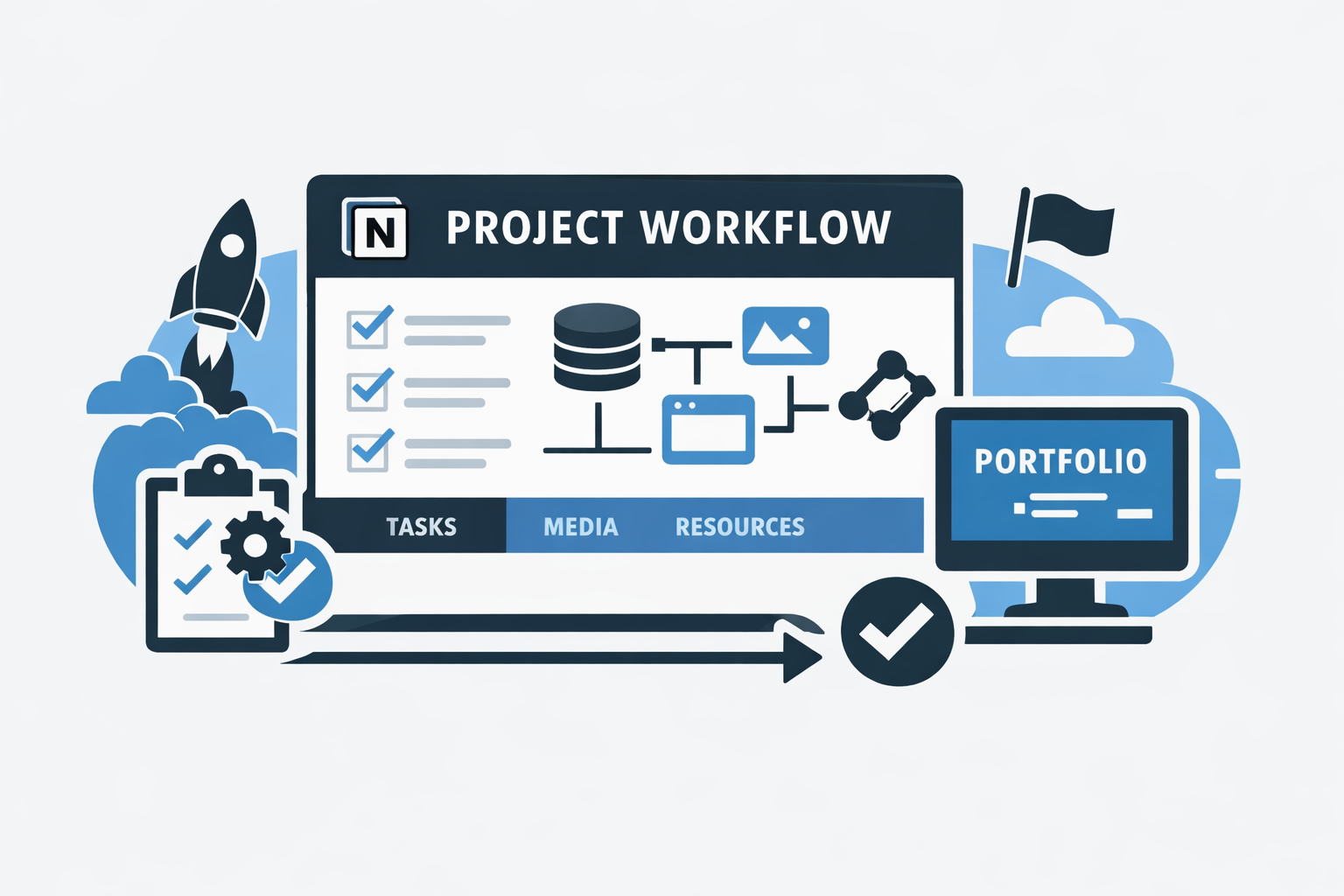
How I Use Notion to Ingest, Organize, and Track My Projects
This Notion setup is a guided project intake workflow rather than a simple notes system: each project starts from a template, highlights the highest-priority next step, and builds toward execution, portfolio readiness, and future automation. By checking key setup steps automatically and separating projects, tasks, assets, resources, and milestones into linked systems, it reduces friction and makes the workflow easier to manage as it scales.
Notion is where almost every project I work on starts.
Not just as a place to take notes, and not just as a task manager either. For me, it works more like a project intake system, a portfolio control center, and a structured source of truth for everything that happens once an idea starts turning into something real.
Over time, I kept running into the same kinds of problems:
- I would start building before setting up version control
- I would forget to write a clear one-line description for a project
- I would lose track of whether something was actually ready for my portfolio
- I would end up with media scattered across different places with no real structure
- I would leave project pages half-finished in ways that broke later automations
So I built a Notion workflow that makes those mistakes a little harder to make.
This article walks through how I use that system when I create a new project, how I organize resources and assets, and how I use a Required Action field to guide the next step at each stage.
Why I built my Notion project system this way
I do not use Notion as a passive archive. I use it as an intake pipeline.
When I add a new project, I want the page to do a few things right away:
- tell me what is missing
- keep the project compatible with my portfolio pipeline
- create structure for milestones, tasks, and work logs
- separate media and resources into their own databases
- make it easier for future automations to understand what state the project is in
That last part matters a lot.
A project in pre-development should be handled differently from one that is actively being built. An archived project should not be described the same way as one that is still in progress. A private project should not accidentally show up on my public portfolio. So instead of treating project pages like loose notes, I try to make each one function more like a controlled system.
The larger goal is consistency. I do not want to manually remember every rule for every project. I want the page itself to tell me what is missing, what matters most, and what should happen next.
Every new project starts from a template
When I want to ingest a new project, I click New in my projects database and choose my Technology template.
I would share the template publicly, but I am still refining how I use Notion, and it depends on several linked databases and supporting tables. At this point, it makes more sense to describe the structure than to export something that only works halfway. If you want more detail on it, I can share more directly through my contact page.

The template includes a few important controls right away:
- a Project Starter button
- an Add Work Log Entry button
- an Assets toggle
- a Resources toggle
- several linked visualizations and quick-access databases
Those linked sections include things like:
- milestones
- tasks
- collections
- notes
- assets
The Collections piece is especially useful when a project includes multiple related sub-items that should stay grouped under the same umbrella.
The first thing I look at is Required Action
The center of the system is a property called Required Action.
This field tells me what needs to happen next and how serious the issue is. It works like a lightweight gatekeeper for the project page.
The basic idea is simple. Instead of relying on memory, the page itself tells me what is still missing.
When a new page is first created, the required action is usually something obvious like:
🔴🔴🔴 Add a title
That sounds small, but it sets the tone for the rest of the system. The page is not considered ready until the page itself says it is.

As I fill things in, that field keeps updating. It changes based on what is missing, what matters most, and what is going to affect downstream systems.
Behind the scenes, this is not just a static checklist. The page checks for missing or conflicting metadata, ranks issues by severity, and then surfaces only the single highest-priority next step. I pair that with a separate severity field so the logic can distinguish between critical setup problems, important structural issues, and smaller improvements.
That matters because not every missing detail is equally important. A missing repo link is not the same kind of problem as a missing icon. A missing public flag for a showcase project matters more than a missing optional asset. By surfacing only the next most important fix, cleanup stays sequential instead of becoming a long list of unrelated problems.
In practice, the system is checking for things like:
- title
- domain
- status
- one-liner
- summary
- started date
- category
- phase
- tags
- repo or an explicit no-repo exception
- core visual assets like thumbnail or banner
Some of those checks are conditional. Showcase projects have stricter requirements than ordinary ones, and technology projects can trigger extra checks, like requiring a repo unless I explicitly mark that one is not needed.
After the title, I usually connect the repo
Once I add the title, the next likely Required Action for a technology project is related to version control.
That is intentional.
There is a good chance a technology project should point to a repo, and I want to catch that early, because otherwise I might start doing real work before the project is version-controlled properly.
In my setup, I do not just paste a GitHub URL into a single text property.
Instead, I click Add Repo inside the Resources section.
That creates a dedicated resource entry using a pre-made GitHub template in a separate Resources database. Then I add the repo URL there.

I do it this way because resources can be a lot of different things. Some are repos, some are links, some are install pages, some are references or files. Putting them in a dedicated database makes them easier to standardize and a lot more useful later.
That structure is more involved than a simple URL field, but it gives me much more flexibility for automation, filtering, and display.
If a project genuinely does not need a repo, I can explicitly mark that too. I prefer that over leaving it ambiguous, because it tells the system the requirement was considered rather than just forgotten.
Status is not just a label, it changes how the system behaves
The Status field is one of the most important fields on the page.
That is because status does more than describe where a project is. It tells other tools in my system how they should treat that project.
An archived project should not sound the same in an article as a project that is actively being built. A pre-development concept should not trigger the same kinds of workflows as something that is already live. Status affects work logs, articles, and other automation steps throughout my pipeline.
So when Required Action tells me to set the project status, that is not just a cosmetic suggestion. It is helping define the project’s operational state.

Once status is set to something like Active, the next required step may change again. For example, if the project is active and does not yet have a start date, the system can flag that.
I intentionally treat the start date as a softer requirement than something like a missing title or a public mismatch, because in some cases that date can be derived automatically later if the project is active.
That is why the severity changes. Red means something critical is missing. Yellow means the project is usable, but still incomplete.
The one-liner exists for my portfolio, not just for me
One of the next important fields is the one-liner.
This is specifically for my portfolio. I want every public project to have a clear, concise description that explains what it is in a single sentence.
That sentence ends up being useful in several places:
- portfolio cards
- previews
- summaries
- skimmable project lists
- internal reference when I come back to an older project later
So once the status is set, Required Action may prompt me to add that one-line description next.
This helps me avoid a common problem, which is building the project first and only trying to explain it later.
Summary is for clarity, not just metadata completeness
The project summary is a little different from the one-liner.
The one-liner is short and external-facing. The summary is broader and gives the project page more shape.
I use it partly to make the project detail page cleaner, and partly to help my future self stay oriented. If I come back to a project after some time away, I do not want to reconstruct its purpose from scattered tasks and notes. I want the page to tell me what it is, why it exists, and what kind of thing it is trying to become.
This is one of those fields that pays off later more than it seems like it will in the moment.
Media is structured as assets, not attachments
The next major piece is media.
Rather than attaching images loosely to a project page, I use an Assets database. From the project page, I can click buttons like:
- Thumbnail
- Banner
- Icon
- Poster
- Hero
Each of those creates a new row in the Assets database using the appropriate template and links it back to the current project.

For example, clicking + Thumbnail creates a thumbnail asset that is already connected to the project.
That setup is definitely more elaborate than what a simple project tracker needs, but I built it this way because of how my portfolio automations work later. I want assets to be typed, reusable, and individually addressable instead of being mixed together in one generic media field.
If there is no banner image, my portfolio can automatically fall back to the thumbnail. Even so, I still prefer to create multiple asset variants because different placements on the site have different visual requirements.
That makes the Notion structure a little heavier up front, but it keeps the downstream system much cleaner.
Not every missing item should block the project
One thing I like about this setup is that not all missing details are treated the same way.
For example, a project may have no more top-level required actions, but still show something like:
🟡 Add an icon
That is a separate media-related signal rather than a full project blocker.
I did that on purpose.
A lot of the time, I want extra media to round out the portfolio more fully, but I do not want the top-level Required Action field to block other automations if the project is otherwise ready to go.
So I separated must be complete for the project to function from would improve presentation.
That distinction matters more than it may seem. It lets the system push quality upward without turning every optional improvement into a failure state. The project can be operationally complete while still carrying smaller asset-related nudges.

That keeps the workflow practical. It still encourages polish, but it does not treat polish as the same thing as readiness.
Public, showcase, and featured are where portfolio logic starts to matter
This is the point where the page stops being only a personal project tracker and starts acting more like a portfolio control center.
There is a Public toggle. If it is turned off, my automation tools ignore the project.
That means it will not feed into certain public-facing systems, and it also will not be acknowledged by parts of my broader setup that expect the project to be publicly visible.
There is also an In Showcase toggle. If that is turned on, the project is intended to appear in my portfolio.
But showcase projects are held to a stricter standard than ordinary ones. If a project is marked In Showcase while Public is still off, the Required Action field catches that mismatch and flags it clearly:
🔴🔴🔴 Project must be public to appear in showcase

That is one of my favorite examples of why I built the system this way. Instead of depending on me to remember a rule, the page enforces the logic for me.
If I later mark a project as Featured, that affects the carousel at the top of my portfolio page. If I do not provide a featured order, the system can still place it automatically, but it is still better to set the order intentionally.
So Required Action may shift again to something like:
🟠 Set featured order
Once that order is set, the project can return to a clean state.

This is where Notion becomes much more than a note-taking space for me. It becomes a way to define how a project should behave across the rest of my portfolio system.
I go into the backend side of that more in another write-up:
[Placeholder Link: Syncing My Portfolio with Notion]
That article covers the broader workflow, including how I connect Notion with the rest of my automation pipeline.
Category, phase, and tags help with structure, search, and presentation
Once the core project is set up, I usually add the supporting metadata that makes the project easier to group and find later.
That includes:
- category
- phase
- tags
These fields help in a few ways.
They improve how projects are grouped and filtered internally. They help with portfolio organization. They also support things like SEO and site-wide search in the systems connected to my portfolio.
So while these fields are not always the first things I fill out, they become important pretty quickly once the project has passed the earliest intake steps.

This is another case where I am trying to make the data do real work instead of just filling out metadata for its own sake.
The Project Starter button is where setup becomes momentum
Once the page itself is in a good state, I want to move from describing the project to actually managing it.
That is what the Project Starter button is for.
This article is not mainly about my task management system, but this button is one of the most useful parts of the template because it creates momentum right away.
When I click it, it:
- adds a default milestone that is usually relevant for technology projects
- adds the tasks connected to that milestone
- creates a new work log entry showing the project has started

That means I do not have to manually build the same starting structure every time. The project page starts as intake, then moves directly into execution.
If you want a deeper breakdown of how I handle task management and how I connect that to Linear, that belongs in a separate article: https://zachary-sturman.com/articles/automating-linear-from-notion
Why I keep resources and assets in their own databases
This is probably the part of the setup that feels most extra from the outside, but for me it solves a real problem.
A project contains a lot of different things:
- repos
- files
- install links
- visit links
- thumbnails
- banners
- icons
- notes
- collections
If all of that lives directly on the main page as miscellaneous properties, the page gets harder to maintain, and automation gets much more fragile.
By splitting out Resources and Assets into dedicated databases, I get:
- more consistent templates
- better linking between entities
- more scalable organization
- cleaner project pages
- stronger compatibility with later automations
So yes, the setup is more involved than the simplest possible Notion tracker. But it is also much more reusable, and it helps me treat projects as structured systems instead of messy pages.
What this system is really doing for me
On the surface, this workflow looks like a way to make cleaner Notion pages.
But that is not really the point.
The point is that it reduces friction at the exact moments where I usually make mistakes:
- forgetting to create the repo first
- forgetting to define the project clearly
- forgetting to mark whether it is public
- forgetting the media needed for the portfolio
- forgetting the fields that later systems depend on
Instead of trying to remember every rule, I built the rules into the page.
That is what makes this useful. The system tells me what to do next. It nudges me toward consistency. It lets me move faster without introducing as much hidden chaos.
And because the structure connects to the rest of my portfolio tooling, the project page is not just documentation. It is part of the pipeline.

Closing
This is most of the Notion setup I use when creating a new project.
It starts as a project intake flow, but it also becomes the control layer for how that project is tracked, described, displayed, and connected to the rest of my system.
There is still more to the broader workflow than what I covered here. In particular, the rest of the project lifecycle connects into my portfolio sync process, including how I handle automation, deployment, and the systems that turn these project records into something my site can actually use.
For that side of it, I will point to a separate breakdown:
[Placeholder Link: Syncing My Portfolio with Notion]
And if you want to understand the task side more deeply: https://zachary-sturman.com/articles/automating-linear-from-notion
If you want to know how I built this system, want help setting up something similar for yourself, or have ideas for ways I could optimize it further, feel free to reach out through my contact page.
You can also check out my portfolio here: zachary-sturman.com
Keep reading
More from the portfolio
Related and recent articles
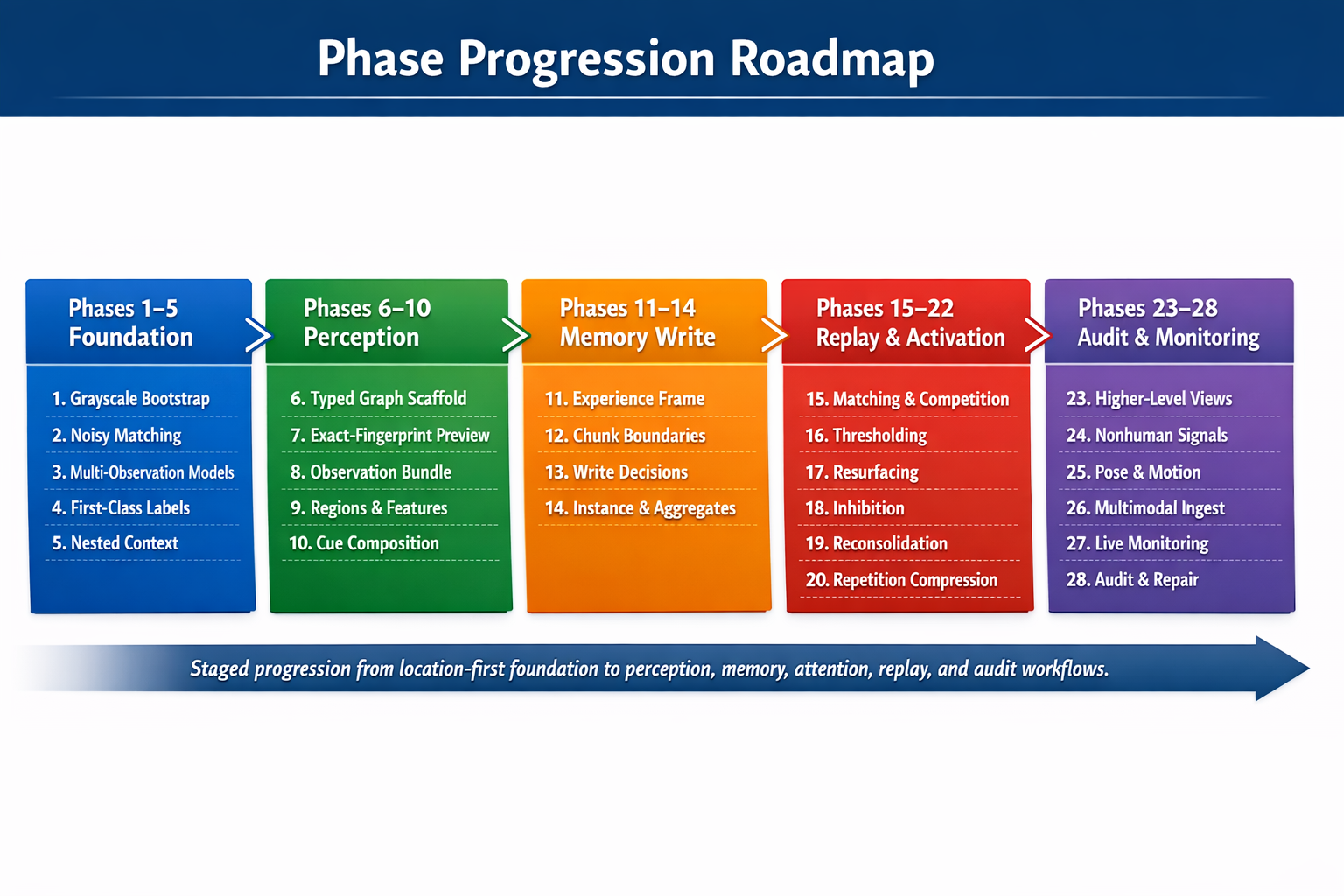
Building a Location-First Learning Agent to Explore Context, Memory, and Consciousness
This explores the idea that recognition comes more from place, context, and repeated reinforcement than detached labels, using an inspectable Python CLI agent that learns locations from sensor observations and stores state plainly. It evolves from simple grayscale location memory into richer, modality-neutral location and concept structures, with a roadmap toward broader memory processes like activation, replay, resurfacing, and reconsolidation.
April 4, 2026
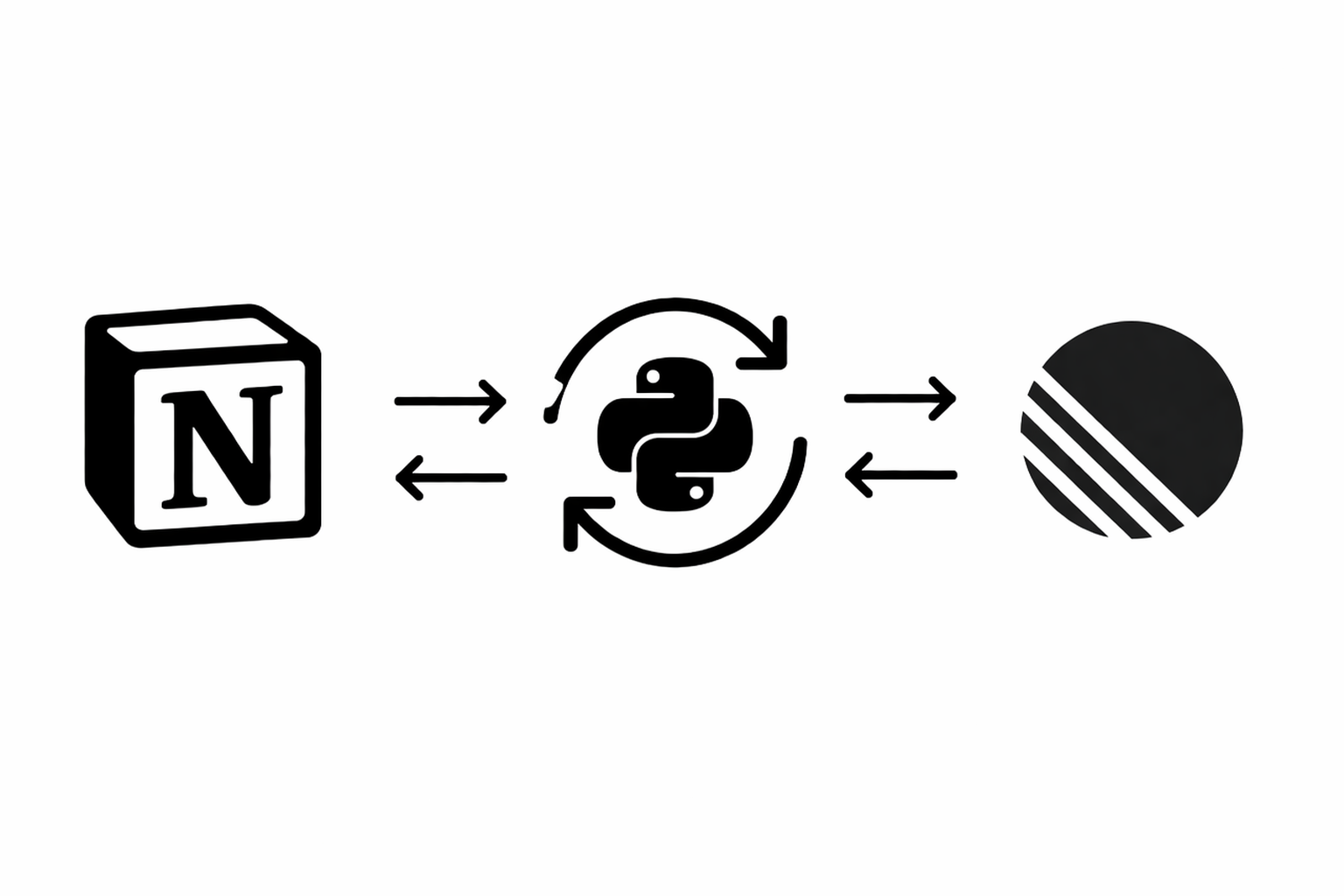
Automating Linear From Notion
A bidirectional sync engine that keeps Notion and Linear aligned by normalizing their data into shared models, reconciling meaningful changes, and preserving relationships and identity across systems.
March 25, 2026
Projects connected to this article

My Notion Pipeline
An automated project and portfolio workflow that uses Notion as the central source of truth for capturing, organizing, maintaining, and publishing work across its full lifecycle. What began as a folder-based system built on local files and .project.json evolved into a relational Notion workspace that connects project metadata, work logs, tasks, milestones, media, and documentation in one structured environment. Inside Notion, the system uses formulas, required-action logic, severity scoring, and visual workflow signals to make project readiness measurable and easier to manage. That structure reduces duplicate entry, improves documentation quality, and keeps projects consistently maintained as they move from idea to execution to presentation. When project data reaches the right state, n8n detects qualifying changes and assembles portfolio-ready JSON, which is then sent into a Python-based build pipeline that prepares content and media for a static portfolio site. Linear supports issue tracking, GitHub stores code and optimized assets, and Firebase Hosting serves the finished site. The result is a connected operating system for project operations and portfolio publishing: one that keeps documentation, execution, and presentation aligned with the real state of the work over time.
Train of Thought Agent
I’m using this project to test whether memory and recognition should begin with location and context instead of detached labels. Right now it is a plain, inspectable learning system that can take simple observations and file-backed sensor inputs, learn names, keep aliases and nested context straight, and show its state instead of hiding it. That makes it useful less as a finished product and more as a research tool and portfolio case study for technically curious readers, AI builders, and engineers who care about systems they can trace, correct, and inspect. What makes it distinct is the combination of restraint and ambition: it stays grounded in user or sensor evidence, it is careful not to pretend temporary sensing shortcuts are full perception, and it keeps a clear path toward a broader memory-and-attention engine. There is still real uncertainty around the final product shape, because the long-range memory system is mostly roadmap while the current learning loop is real and working. The overall character is thoughtful, methodical, and a little provisional on purpose, more like a careful research notebook than a polished AI launch.
Bias Detecting AI
This is a practical evaluation tool I’m using to check whether language models treat similar people differently when the only thing that changes is a demographic signal. It brings together structured bias tests, side by side model comparison, detailed result review, and prompt rewriting, so I can look at fairness as something concrete and inspectable rather than abstract. The clearest audience is people choosing, auditing, or shaping models before those models are used in higher-stakes workflows. That could be product teams, AI governance work, research, operations, hiring teams, or admissions related review. What makes it useful is that it does not stop at scoring. It also helps me clean up prompts, reuse safer templates, and recommend models based on the kind of task I actually care about. A few things still feel open, and I think that is worth saying plainly. This reads more like a focused internal evaluation desk than a broad shared platform, and more like an early, working system than a fully polished brand experience. The character is careful, measured, plainspoken, and a little austere, which fits a product that is really about close comparison and accountable judgment.
Top Note
Top Note is a focused productivity app for people who tend to ignore reminders or feel weighed down by long to-do lists. It takes a simpler approach: one reminder, flashcard, or note at a time. You can complete it or skip it, and if you skip, it returns sooner through a spaced repetition system that keeps important things visible. This design encourages accountability and steady progress. It helps build habits, strengthen memory, and keep personal ideas within reach—without the noise of endless lists. Why it works Top Note combines two familiar ideas: single-task focus and spaced repetition. Together they keep your attention on what matters next, reinforcing memory and consistency over time. Features – One-at-a-time reminders that reduce distraction. – Skip and repeat so skipped items return sooner. – Spaced repetition flashcards for better recall. – Widget-first design that keeps the app close at hand. – Flexible note support for quotes, goals, or brief thoughts. – Simple setup inside the app; most use happens in the widget. Best for – People who often dismiss reminders. – Habit tracking and reinforcement. – Short study or review sessions. – Keeping a meaningful note visible through the day. Top Note makes productivity manageable by narrowing your focus. Instead of managing a list, you engage with one small task—and let time handle the rest.